Tips for Organizing Google Classroom & Other Learning Management Systems
I once had a colleague who left in the middle of the school year, so while the district admin were searching for a replacement, I was tasked with managing her Google Classroom so that her students could still engage with course content and progress through the material despite her absence. While I wasn’t a huge fan of this arrangement - it was a LOT of extra (uncompensated) work - I think the biggest issue for me was trying to navigate my former colleague’s cluttered and disorganized Google Classroom.
Picture this: no organizing topics, a huge running list of various assignments and materials, no clear sense of organization, a stream that included various assignments mixed with random announcements… it was complete chaos in that Google Classroom!
I just thought to myself… if I’m having trouble navigating this Google Classroom, how are the students (many of whom struggle with organization themselves) able to do so?
I spent HOURS creating various topics and sorting the long list of assignments and materials into those topics. It was a lot of work, but ultimately cleaning up this Google Classroom allowed these students to access content more easily, find the resources they needed, and stay up-to-date with assignments.
In this blog post, I’m going to share some tips for organizing your Google Classroom - or whichever Learning Management System (LMS) your district uses - so that your students have a smooth and streamlined learning experience as they access your content.
Use Organizing Topics
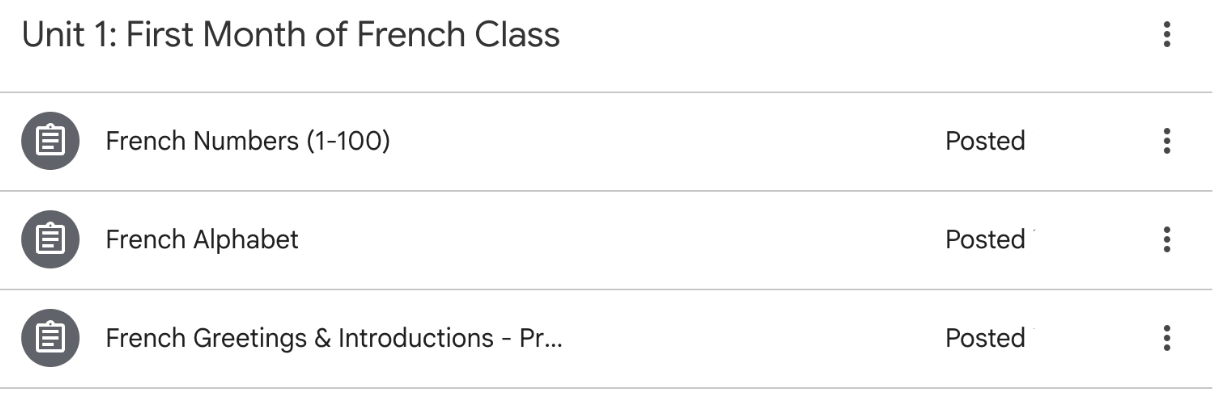
This one feels pretty straightforward, but Google Classroom has a feature under the Classwork tab that allows you to create Topics. Think of these as headings. You can organize your topics based on Units, Months, or even Quarters/Marking Periods - find what works best for you and your students. I personally create a new topic for each Unit, so that, for example, when we are working on the Family Unit, all of the resources and assignments I post related to that unit are under the Family Unit Topic.
Within your Topic, you can post all relevant assignments and resources, so that students can easily find materials.
Pro Tip: I organize the assignments chronologically, so the most recent lessons appear at the top of the topic. I also organize my Topics chronologically, so Unit 1 appears at the bottom of the Classwork tab, and then Unit 2 will appear above it, and then Unit 3 will appear above Unit 2 - so on and so forth.
Include Important Course Materials
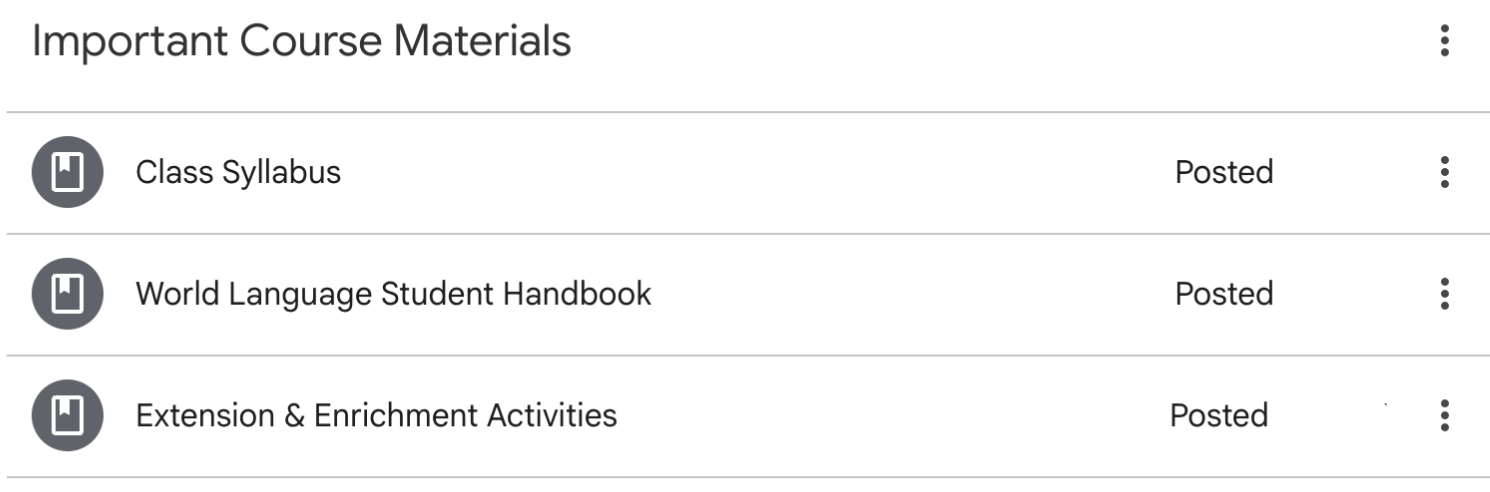
At the very top of the Classwork tab, I include a topic called Important Course Materials. It stays anchored at the top of the tab, so that students can easily access it. This is where I post important materials like the class syllabus, the World Language Student Handbook (this is a special document that I created to help students succeed in my WL classroom - I will likely do a blog post on this in the future!), Extension and Enrichment activities (for early finishers), etc.
These are documents that students should be referring back to throughout the school year, so I make sure to place them in an easily accessible area.
Include Most Important Materials - Don’t Include Everything!
A huge mistake that I see teachers making with their LMS is that they post literally everything. This is not necessary, and quite honestly, it’s overwhelming for students. In-class activities - especially worksheets and other handouts - do not need to be posted to Google Classroom, unless there’s a legitimate reason.
For example, if you have students working on a vocabulary list that goes in their binder, but half the class is out on a school trip, you may want to post the list to Google Classroom so that the students who are away can complete the assignment for homework over the weekend.
But normally, there’s no need to post the vocabulary list to Google Classroom, because students who are out can grab a copy from your absent bin (or wherever you place handouts for absent students).
If each topic has 20+ items in it, you’ll find that your Google Classroom will be cluttered by the month of October! Try to only post the most relevant materials that students will absolutely need in order to be successful.
I know some teachers like to post the homework on Google Classroom so that students can access it digitally from home even if they’ve left their World Language materials at school. For this, I recommend creating a Homework material that you place under the Important Course Materials topic. In it, you can add various documents that students will need for homework that week. The advantage to this approach is that you allow students to access content even if they are technically unprepared (this saves me a LOT of time entering zero’s into the grade book for incomplete/missing homework), while keeping your Google Classroom nice and organized.
Don’t Be Afraid to DELETE!
I used to think that if I posted something on Google Classroom, it had to stay there forever. Not true! If I post an assignment while I am absent, for example, I can delete that assignment a few weeks later, well after I have graded and returned it to students. Why keep the assignment in the Classwork stream if I know that students are not going to ever look at it again?
Sometimes I’ll post a Material under a unit topic that includes some supplemental resources: Youtube videos, online tutorials, websites, fun games, etc. There is a very small chance that students are ever going to consult those resources several months after we have finished that particular unit… so from time to time, I will go into Google Classroom and delete items that are no longer important/relevant. This helps keep my Google Classroom relatively neat and organized.
Create a System and Stick to It
While I’ve given plenty of ideas for how to organize your Google classroom, you ultimately need to create a system that works best for you and your students. I recommend experimenting with a few different methods of organization, and find the one that works best. The important piece here, though, is that once you find a system that works, stick to it!
If we get lazy and stop filing materials/assignments into their appropriate topics, our Google Classroom quickly becomes an overrun mess. Organizing your Google Classroom is the gift that keeps on giving: by investing the time upfront, you are reducing the likelihood of students/parents complaining because they couldn’t find a particular resource. Fielding those complaints from students and parents takes time… so just frontload the work by keeping your Google Classroom neat and organized - in a systematic way! - and you’ll thank yourself later, for sure.
And by the way, it’s just best practice, right? We expect our students to keep a clean and organized binder, notebook, and/or folder for our classes… so why shouldn’t we hold ourselves to those same standards by keeping our Google Classroom neat and organized, too?
Hope you found something here that will be useful in your French, Spanish, or Italian classroom!
Happy language teaching,
~ Michael